Key takeaways
- Android: Settings > Location > App location permissions shows every app with location access.
- iPhone: Settings > Privacy & Security > Location Services lists each app and its access level.
- Set most apps to only while using or ask every time, and switch off precise location where not needed.
- Android’s Privacy dashboard shows which apps actually used your location recently.
To see which apps are using your location, open Settings > Location > App location permissions on Android, or Settings > Privacy & Security > Location Services on iPhone. Both list every app with location access. Tap an app to change it to “only while using”, “ask every time” or “don’t allow”, and turn off precise location.
Menu names vary a little between phone brands and software versions. The paths below follow Google’s and Apple’s support pages, checked in October 2026, with notes for Samsung phones.
Table of Contents
Location permission options at a glance
Android and iPhone use different words for the same choices. This table shows how they match.
| Access level | Android label | iPhone label |
|---|---|---|
| Even in the background | Allow all the time | Always |
| Only when the app is open | Allow only while using the app | While Using the App |
| Decide each time | Ask every time | Ask Next Time Or When I Share |
| No access | Don’t allow | Never |
| Approximate area only | Use precise location (turn off) | Precise Location (turn off) |
“All the time” access is the one to check first. Very few apps need it. Navigation, ride-hailing and food delivery apps usually work fine with “only while using the app”.
How to check which apps use your location on Android
On Pixel phones and phones with a near-stock version of Android, use these steps:
- Open Settings and tap Location.
- Tap App location permissions.
- Apps are grouped as Allowed all the time, Allowed only while in use and Not allowed.
- Tap any app to change its setting.
Google’s help pages also list a second route that works on most phones: Settings > Security & privacy > Privacy > Permission manager > Location. The exact wording may differ slightly on your phone.
On Samsung Galaxy phones
On Samsung phones running One UI 5 or later, go to Settings > Privacy > Permission manager > Location. This shows which apps have access and when they last used it. On older One UI versions, Location may appear directly in the main Settings menu.
Change location access for one app
- Open Settings > Apps.
- Tap the app. If you do not see it, tap See all apps.
- Tap Permissions > Location.
- Choose Allow all the time, Allow only while using the app, Ask every time or Don’t allow.
Turn off precise location
On Android 12 and later, each app’s location page has a Use precise location switch. Turn it off and the app gets only your rough area. This is enough for weather, news and many shopping apps. Keep it on for maps, cab booking and delivery tracking, which need your exact spot.

Use the Privacy dashboard to see recent use
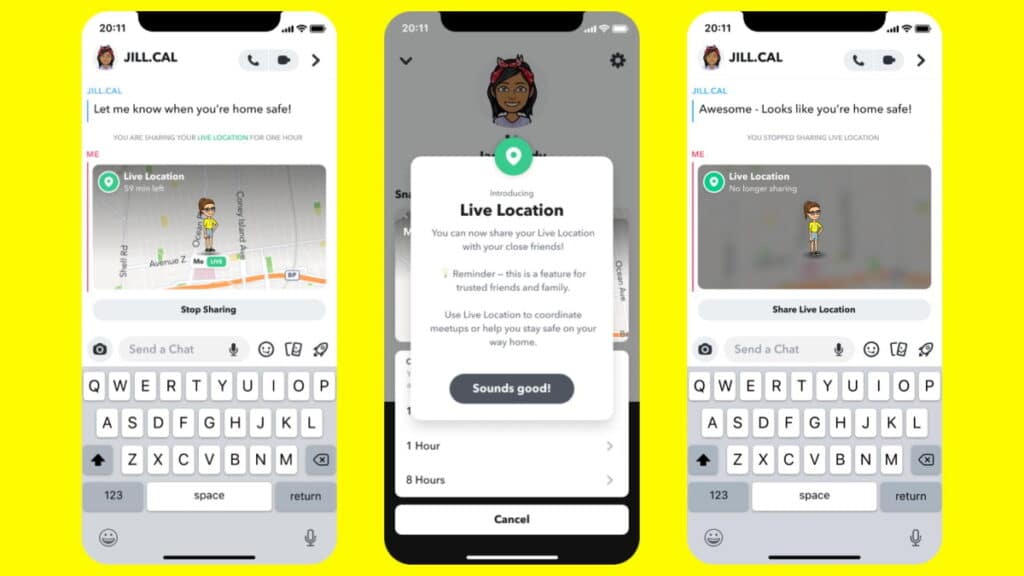
The permission list tells you which apps can use location. The Privacy dashboard shows which apps did use it. On Pixel phones, go to Settings > Security & privacy > Privacy > Privacy dashboard, then tap Location.
You will see a timeline of apps that accessed your location. It shows the last 24 hours by default. In late 2024 Google added a 7-day view through a Google Play system update, starting with Pixel phones, according to Ubergizmo. From the timeline, tap Manage permission to change access straight away.
The status bar is another clue. When an app uses your location, a location icon appears at the top of the screen, and on Samsung phones you can pull down the notification panel to see which app it is.
Turn off location completely
Go to Settings > Location and switch off Use location. You can also add a Location tile to Quick Settings by swiping down twice, tapping the edit icon and dragging the tile in. Keep in mind that turning location off stops Google’s Find Hub from showing your phone’s current spot if you lose it.
How to check which apps use your location on iPhone
- Open Settings and tap Privacy & Security.
- Tap Location Services. Make sure the main switch is on if you want to change individual apps.
- Scroll down to see each app and its current setting, such as Always, While Using or Never.
- Tap an app and choose Never, Ask Next Time Or When I Share, While Using the App or Always.
Apple says “While Using the App” lets the app use location only when it, or one of its features, is on screen. The status bar may turn blue when such an app is actively using your location.
Turn off Precise Location on iPhone
Inside an app’s Location Services page, switch off Precise Location. The app will then receive only your approximate location. This option needs iOS 14 or later, so every current iPhone has it.
Check System Services
Apple’s own features also use location. Scroll to the bottom of Location Services and tap System Services. Here you can switch off items you do not need.
One setting worth knowing is Significant Locations & Routes. It keeps a record of places you visit often, which iPhone uses for suggestions. Apple’s personal safety guide explains how to turn it off from the same System Services screen. Avoid switching off emergency-related items, which help emergency services find you.
Turn off location completely on iPhone
Turn off the main Location Services switch at the top of the page. All apps lose access to your location until you turn it back on.
Which apps actually need your location?
A simple rule: give location only to apps whose main job depends on it.
- Need it while in use: maps, cab and auto booking, food and grocery delivery, weather (approximate is enough).
- May need it all the time: family safety apps, fitness tracking during runs, and a few work apps for field staff.
- Usually do not need it: games, photo editors, torch apps, calculators and most social media apps.
If an app stops working after you remove access, it will ask again. You can then decide with full knowledge of why it wants it. Android also removes permissions from apps you have not used for a while if Pause app activity if unused is on in the app’s settings.
For more privacy and settings guides, visit our How To section, or check our picks in the Apps category.
Frequently asked questions
How do I know which app is tracking my location right now?
On Android, pull down the notification panel when the location indicator appears, or open the Privacy dashboard and tap Location. On iPhone, a location icon appears in the status bar when an app uses location, and Location Services lists every app’s access level.
Is it safe to turn off precise location?
Yes. Apps still get your general area. Only apps that need your exact spot, such as maps and cab booking, may work poorly, and they will ask for precise location again.
Does turning off location stop Google from tracking me?
It stops apps and the phone from using live location. Google’s Timeline is a separate setting in your Google account’s activity controls, and Google says it is off by default.
What does “Ask every time” mean on Android?
The app has to ask for location access each time you open it. It is a good middle option for apps you use rarely.
Sources: Google: Change app permissions on Android, Google: Manage location settings, Apple: Location Services and privacy, Apple Personal Safety User Guide.